Creating Custom Form Cards in SharePoint
Setting up custom form cards in SharePoint using the Custom Cards Template from
SharePointDashboards.com offers a sophisticated way to manage and edit data within SharePoint lists. This template allows the implementation of inline edit mode, facilitating smooth data entry and updates directly from the same interface, without having to navigate away from the page. By leveraging this capability, project managers, team leaders, and employees can enhance their productivity and streamline workflow processes.
Understanding the Custom Cards Template
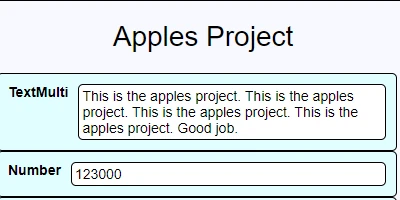
The Custom Cards Template provides users the ability to create structured forms with advanced editing capabilities. One of its key features is the ability to have fields span multiple columns by prefixing the column name with "#CW," where "#" is an integer value. For instance, if you have a field named "Status" that requires more space, you can expand it over two columns by naming it "2CWStatus." This feature is particularly useful for fields with multiline text, as it offers clarity and ample space for information display.
Several rules apply when using inline edit mode. Multiline text fields are only editable if they are in simple text mode without rich text editing. Additionally, while fields like images and calculated fields cannot be edited from the card, the design allows sufficient flexibility for most other editing needs.
Integration with Charting and Visual Status Indicators
In the world of project management and employee tracking, visual cues can significantly improve comprehension and communication of status and progress. By integrating the custom cards with charting and visual status indicators, teams can readily assess the project's health and employee performance at a glance. Managers can use color codes, icons, and progress bars to represent different statuses, such as "On Track," "At Risk," or "Delayed," making it easier to communicate issues and successes across the team.
Tools such as bar charts, pie charts, and Gantt charts can be configured to provide real-time visual reports directly from the data maintained within the form cards, thereby aligning with dashboard overviews shared across platforms.
Application in Project and Employee Management
Custom form cards in SharePoint provide a flexible and dynamic way to manage various facets of project and employee management:
- Project Tracking: Facilitate the management of multiple projects by centralizing all necessary information on a single SharePoint list. Each project can have a dedicated form card containing fields for timelines, resources, risks, and more. Managers can edit and update project statuses or reallocate resources based on progress updates.
- Employee Management: Use the card system to maintain employee records. Fields can include personal information, performance metrics, training schedules, and feedback notes. Inline editing enables HR professionals to quickly update any changes to employee details while maintaining historical data for reviews and assessments.
- Task Management: Track specific tasks within projects, assigning due dates, priorities, and task owners. Inline editing ensures that modifications to task deadlines or statuses are swiftly reflected, thereby improving accountability and transparency.
Using SharePoint JSON Formatting
SharePoint JSON formatting adds another layer of customization by allowing users to apply styling and conditional formatting to a SharePoint list view. By using a pre-designed JSON template from SharePointDashboards.com, users can seamlessly implement custom styling that accentuates critical data points, helping to highlight key metrics.
These templates can be applied directly to SharePoint list views, transforming data presentation with bold colors, icons, and dynamic styles that enhance readability and information hierarchy. Applying these templates involves copying the JSON code and pasting it into the SharePoint list view's formatting settings, ensuring efficiency and uniformity.
Set-Up Process and Usage
Implementing the Custom Cards Template on SharePoint is straightforward and requires only a few steps:
1. Download the Custom Cards Template from
SharePointDashboards.com.
2. Copy the JSON code provided in the template.
3. Navigate to your SharePoint list and enter the edit mode for the list view.
4. Access the list settings and paste the JSON formatting into the list view's JSON editor.
5. Save your changes and experience the new customized form card view.
Access to efficient navigation between list and card views enhances user experience. By leveraging the "Close Redirect" URL feature, users can return to the default list view, such as "All Items," after completing their edits. Additionally, the Card Link Template provides a versatile function for shifting seamlessly between different views. This dual functionality ensures that users are never more than a click away from the information they need.
Conclusion
The implementation of custom form cards in SharePoint using templates from SharePointDashboards.com offers an innovative way of enhancing SharePoint's inherent capabilities for managing information, tasks, and projects. Whether managing a team, overseeing a project, or keeping tabs on individual tasks, these custom cards offer a scalable, adaptable solution tailored to meet specific business needs.
By providing a powerful mix of visual status indicators and inline editing, this functionality assists organizations in maintaining coherent, transparent project management processes and optimal employee tracking. With easy setup and rich customization through JSON formatting, SharePoint users can harness these capabilities to drive productivity and efficiency across their operations.